Analog to IP Migration: A Step-by-Step Deployment Plan
This guide outlines a practical process for migrating an analog CCTV system to IP cameras. It details prerequisites, cabling, power, network configuration, and final verification to ensure a reliable upgrade without unnecessary downtime.
- Assess existing analog cameras for reuse or replacement before purchasing new hardware.
- Plan power delivery and network bandwidth early to avoid costly retrofits during installation.
- Use structured cabling standards and label all ports to simplify future troubleshooting and maintenance.
- Verify image quality and network performance under real operating conditions before signing off.
Why Migrate from Analog to IP Technology
Most professional installations today operate in a hybrid environment. Legacy analog cameras remain on site because they still capture usable video, but they limit the ability to add remote viewing, digital recording, or advanced analytics. Migrating to IP cameras changes how footage is stored, transmitted, and accessed.
The decision to upgrade usually comes from one of three pressures. First, the current digital recorder is approaching the end of its service life. Second, the site owner wants to view footage from a smartphone or tablet. Third, the existing analog cameras are reaching the end of their useful life, and the cost of replacement makes a full system refresh logical.
Analog cameras are often cheaper to install initially. They use simple coaxial cabling and centralized power. IP cameras, by contrast, require network infrastructure and more careful planning. The transition is not just swapping one box for another. It requires a full review of the physical site, the electrical infrastructure, and the data network.
Step 1: Conduct a Full Site Audit
The first task is a complete inventory of the current system. Walk every camera location. Record the make and model of each analog camera, the type of coaxial cable running to it, the power supply method, and the condition of the mounting hardware.
Create a spreadsheet with the following columns: camera ID, location, existing model, condition rating, cable type, power source, and notes on physical access. This document becomes the baseline for the entire project. Without it, it is easy to miss a camera in a hard-to-reach area or to underestimate the length of cabling that needs replacement.
During the audit, identify which cameras can be reused. Some analog cameras have built-in IR illumination and weatherproof housings that remain serviceable. Others may have damaged lenses or failing motors. If a camera is in good physical shape, it may be possible to replace only the internal components or keep the housing for a new IP unit.
Step 2: Define the New System Architecture
Once the audit is complete, decide on the target architecture. Most modern installations use a hybrid approach during the transition. The goal is to move from a centralized analog DVR to a distributed or networked IP setup.
Determine where the IP video recorder or network video recorder will be located. This unit needs access to power, network connectivity, and adequate ventilation. If the existing analog recorder is in a server room, that space may be suitable. If it is in a closet or an unsecured area, consider relocating it.
Select the type of IP cameras for the new installation. For interior areas, dome or bullet cameras are common choices. For exterior areas, weatherproof cameras with integrated lighting are standard. The resolution and frame rate should match the purpose of the surveillance. A parking lot may need lower resolution but higher frame rate for motion detection. An entrance may need higher resolution for face recognition.
Step 3: Plan the Network and Power Infrastructure
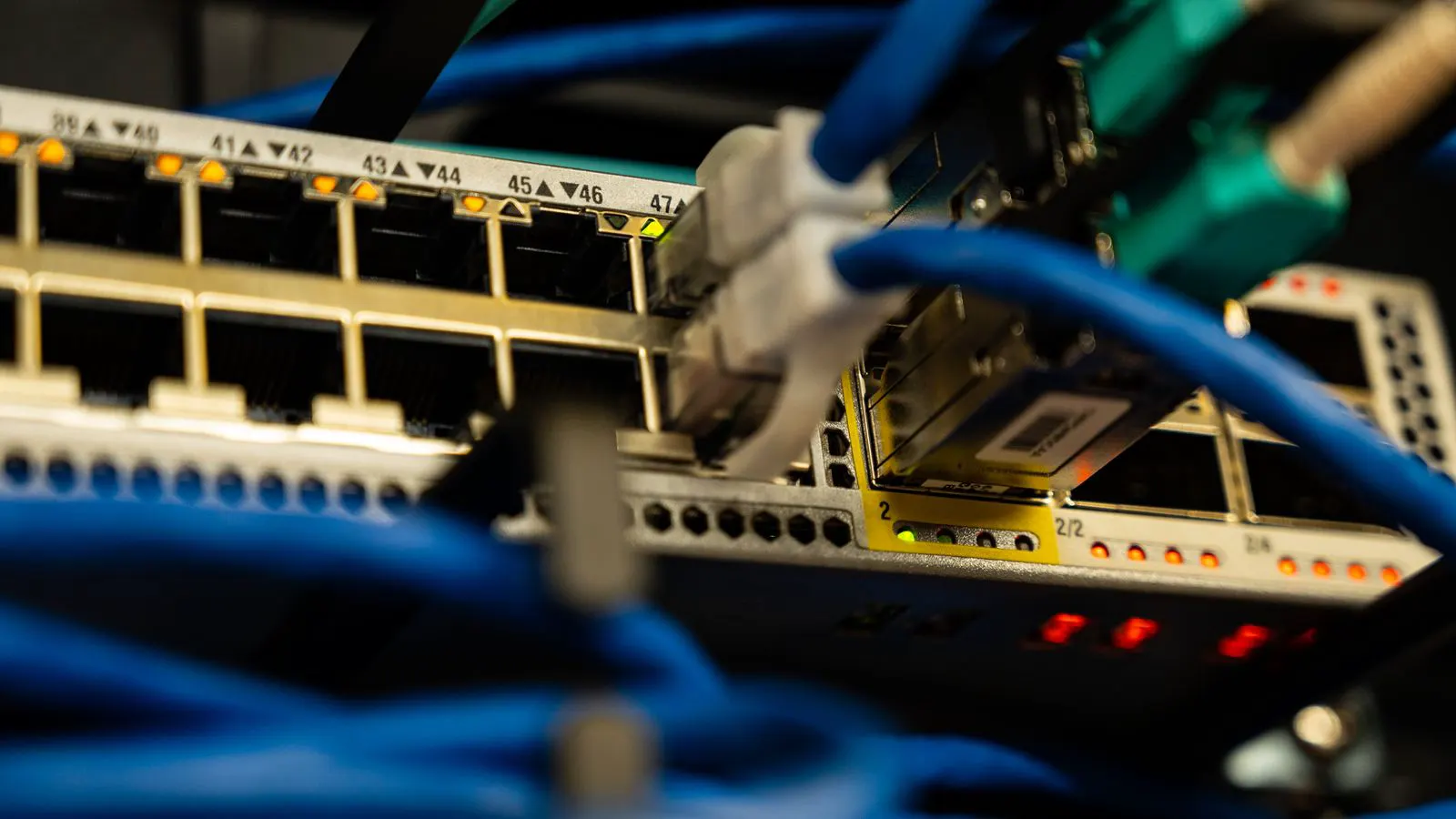
This is the most critical step in the migration process. IP cameras require both data connectivity and power. The standard method is Power over Ethernet, which sends both signals over a single cable. However, long distances and high power demands can create challenges.
Calculate the total power budget for the new cameras. Each IP camera draws a specific amount of power. Add all the draws together and add a margin for growth. The network switch must be capable of delivering that power. If the existing switch is not a managed switch with PoE capability, it will need replacement.
Plan the network topology. The cameras will connect to a managed switch, which connects to the NVR. The NVR then connects to the local area network. Ensure the switch supports VLANs if you want to isolate video traffic from other network devices. This prevents video streams from saturating the office network and causing slow web browsing or email performance.
Consider the cable run lengths. Standard Ethernet cables are rated for 100 meters. If a camera is farther away, you may need a fiber optic converter or a PoE extender. These add cost and complexity, so it is better to plan for them early than to discover the problem after installation.
Step 4: Prepare the Physical Installation
Prepare the physical site before bringing in the new hardware. Check the mounting locations for stability. Concrete walls may require specific anchors. Wood studs may need metal brackets. Ensure that all brackets are level and secure.
Run the new Ethernet cables. If you are reusing existing coaxial cable, you may need to strip it and use it as a conduit. This is a common practice in older buildings. The coaxial cable can house the new Ethernet cable, saving the cost of running new conduits. However, ensure that the coaxial cable is in good condition and free of sharp bends.
Label every cable at both ends. Use a permanent label with the camera ID and the switch port number. This label will save hours of troubleshooting during commissioning and future maintenance. If a camera fails, you need to know exactly which port it is connected to without spending time tracing the wire.
Step 5: Configure the Network and Cameras
Once the cables are run, begin the network configuration. Connect the managed switch to the NVR. Configure the switch to create a dedicated VLAN for the video traffic. Assign a static IP address to each camera. Do not rely on DHCP for static IP assignments in a critical security system.
Log into each camera using its IP address. Set a unique username and password for every device. Disable the default web interface access if it is not needed. Configure the video encoding settings. Most IP cameras use H.264 or H.265 compression. H.265 offers better compression at lower bandwidth, which is useful for large installations.
Set the recording schedule on the NVR. Decide if the cameras will record continuously or only when motion is detected. Motion detection is useful for reducing storage requirements, but it can miss events if the sensitivity is set too high. For critical areas, continuous recording is often preferred.
Step 6: Test the System Under Real Conditions
Do not declare the system complete until it has been tested under real operating conditions. Connect the NVR to the local area network and verify that all cameras are online. Check the video feed from each camera. Look for blur, pixelation, or dropped frames.
Test the remote access features. Log in to the NVR from a laptop on the office network. Then test from a mobile device outside the site. Ensure that the video stream is clear and that the playback controls work correctly. If the remote access is slow, check the internet bandwidth and the NVR’s upload settings.
Run a stress test. Record video from all cameras simultaneously for at least 24 hours. Monitor the NVR’s disk health and network traffic. If the system crashes or the video quality degrades, investigate the cause immediately. Common issues include insufficient power to the switch, a congested network, or a failing hard drive.
Step 7: Decommission the Old System and Document
Once the new system is verified, remove the old analog equipment. Take the old DVR, analog cameras, and coaxial cables to a certified e-waste facility. Do not dispose of them in regular trash.
Create a final documentation package. This should include the network diagram, the IP address list, the cable run map, and the configuration settings for each camera. Store this document in a secure location. Provide a copy to the site owner or the maintenance team.
Common Mistakes to Avoid
One of the most common mistakes is underestimating the power requirements. Many installations fail because the switch does not provide enough PoE power to all the cameras simultaneously. This causes cameras to reboot randomly.
Another mistake is ignoring the network bandwidth. If the office network is shared with the video traffic, a single camera failing can cause the entire network to slow down. Isolating the video traffic on a separate VLAN prevents this.
A third mistake is poor labeling. If cables are not labeled, troubleshooting a single camera failure becomes a time-consuming exercise. Always label both ends of the cable.
Final Verification Check
Before signing off on the project, perform a final verification check. Confirm that every camera is recording. Confirm that the storage is sufficient for the required retention period. Confirm that the remote access works from outside the site.
Check the system logs. Ensure there are no errors or warnings. Test the alarm inputs and outputs if they are part of the system. Verify that the motion detection zones are set correctly and do not trigger on trees or passing vehicles.
The migration from analog to IP is a significant upgrade. It provides better image quality, easier remote access, and more flexibility for future expansion. However, it requires careful planning and execution. By following the steps above, you can ensure a smooth and reliable transition.
Frequently asked questions
Can I keep my existing analog cameras during the migration?
Yes, you can keep analog cameras that are in good condition and connect them to an analog-to-IP converter. However, you will lose some features and may need a hybrid recorder.
How much does it cost to upgrade an analog system to IP?
Costs vary widely depending on the number of cameras, the existing infrastructure, and the quality of the new equipment. A detailed quote from a local installer is the best way to estimate the total cost.
What type of cable should I use for IP cameras?
Standard Cat 6 Ethernet cable is the most common choice. Cat 6A is also suitable and provides better bandwidth for future upgrades. Ensure the cable is rated for outdoor use if needed.
Do I need a managed switch for an IP camera system?
Yes, a managed switch is recommended. It allows you to configure VLANs, set port security, and monitor the health of the network. Unmanaged switches are not suitable for professional security systems.
How long does the migration process take?
The time required depends on the size of the site and the complexity of the installation. A small office may take a day or two. A large facility may take several weeks.