IP Camera Pre-Deployment Checklist for Network Cameras
A successful IP camera deployment requires verifying power delivery, network capacity, physical mounting, and environmental conditions before installation. This checklist provides a step-by-step method for site surveys.
- Verify PoE power budget and cable length before finalizing camera placement.
- Check network bandwidth and switch port availability for all planned camera locations.
- Confirm physical mounting surfaces can support the weight and wind load of the equipment.
- Test video quality and storage requirements in the field, not just in the lab.
Why a Site Survey Fails
Most failed IP camera installations trace back to assumptions made during planning. The team selected high resolution cameras, calculated a rough bandwidth estimate, and ordered the hardware. On site, the cables ran too far, the switch ports were full, and the mounting points were weak. The result is a project that takes weeks to fix instead of days. A structured IP camera checklist prevents these errors by forcing specific checks before a single device is powered on. The following audit groups verification steps by theme.
Verify Power Delivery and Cable Length
Network cameras rely on Ethernet cabling to receive data and power, often through Power over Ethernet. The first item in the IP camera checklist is a power budget calculation. Count the number of cameras. Identify the power consumption of each model. Add the overhead for switches, PoE injectors, and any non-PoE cameras that require external power supplies. If the budget is tight, the deployment will fail at the switch level.
Measure the actual cable run length. Standard copper Ethernet cables have a maximum distance of 100 meters from the switch to the device. A run that appears short on a drawing may exceed this limit once you account for the path through conduits, walls, and ceilings. If the distance is too long, you need a fiber optic converter or an intermediate PoE injector. Check the cable gauge as well. Thin cables over long distances suffer higher voltage drops, which can prevent the camera from reaching the required power level.
Red flags to watch for:
- Cable runs estimated at 90 meters or more without a fiber conversion plan.
- Mixing passive and active PoE infrastructure without a clear power budget.
- Using outdoor-rated cables in indoor environments, which increases cost and reduces flexibility.
Check Network Bandwidth and Switch Capacity
The network is the backbone of any IP camera deployment. Before ordering hardware, confirm that the existing switch infrastructure can support the new cameras. Calculate the bandwidth required for the intended recording quality. High resolution cameras at high frame rates consume significantly more bandwidth than lower resolution models. If the site uses a shared network for other applications, the cameras will compete for bandwidth during peak hours.
Check the number of available switch ports. Each camera requires one port. Leave spare ports for future expansion or for PoE injectors if needed. If the existing switches are full, plan for new hardware. The switch must also support the required power per port. A single port might need to supply power to multiple cameras if they are daisy-chained, though this is not recommended for large installations.
Red flags to watch for:
- A plan to connect all cameras to a single switch without checking its total power budget.
- No separation of the surveillance network from the general office network.
- Using a switch that does not support the required PoE standard.
Confirm Physical Mounting and Environmental Conditions
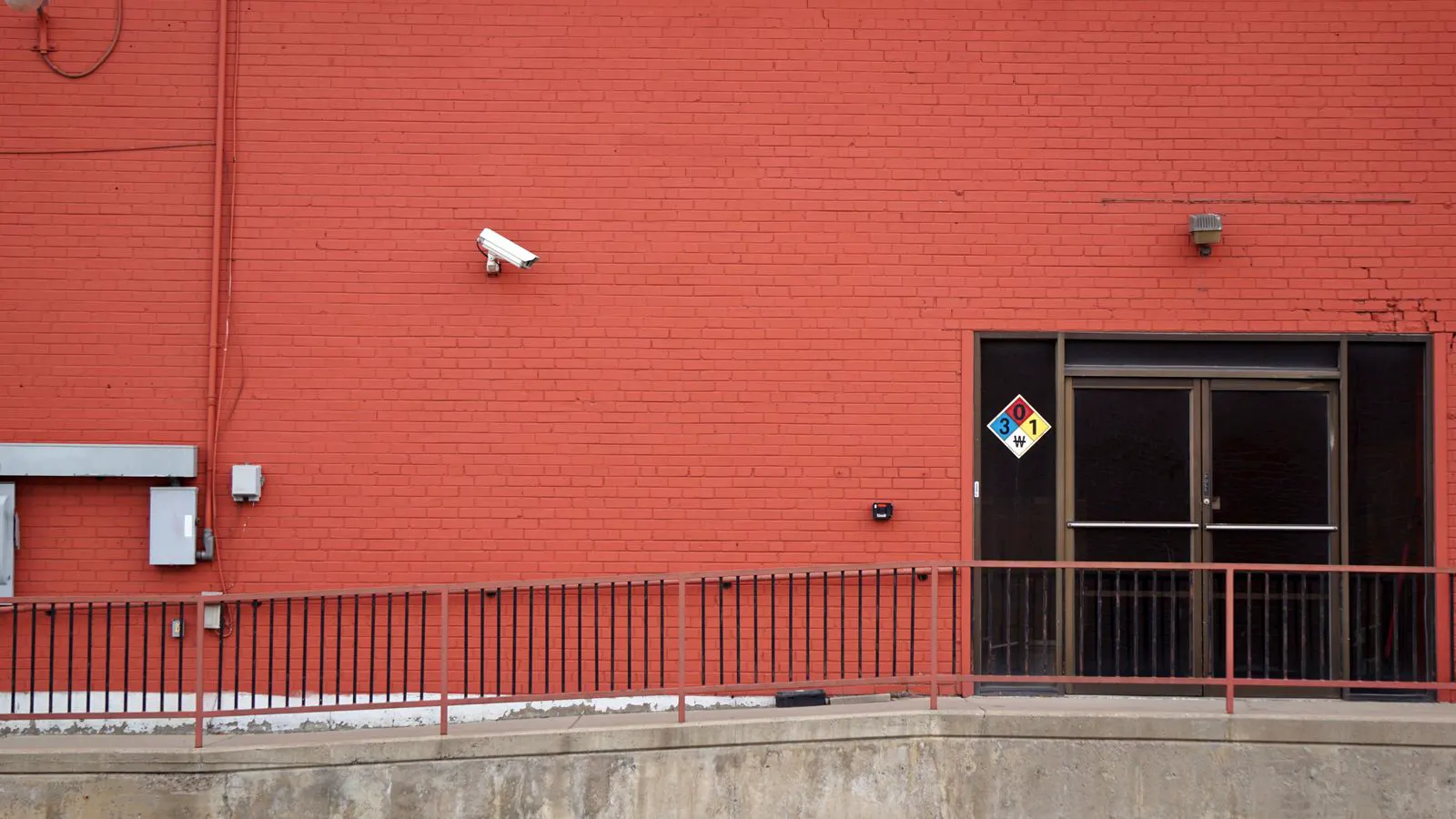
The mounting surface determines the lifespan and usability of the camera. Metal poles, concrete walls, and brick facades are common mounting points. Each material requires specific hardware. Concrete needs chemical anchors. Brick requires masonry anchors. Wood framing often requires screws or brackets. If the surface is weak, the camera will fall. If the surface is porous, condensation can enter the housing.
Assess the environmental conditions. Cameras installed outdoors must be rated for the local climate. Check the temperature range. Extreme heat can damage electronics. Extreme cold can freeze the lens. Rain and snow require a weatherproof housing with a proper seal. Sunlight exposure affects image quality. A camera pointed directly at the sun will have poor detail in the lower part of the frame.
Red flags to watch for:
- Mounting a heavy camera on a lightweight plastic bracket.
- Ignoring the wind load on a pole-mounted camera.
- Placing a camera in a location where direct sunlight hits the lens at midday.
Validate Video Quality and Storage Requirements
A camera can be powered and connected, but if the video is unusable, the system fails. Test the camera in the field before finalizing the placement. Check the resolution, frame rate, and compression codec. H.265 is common for its efficiency, but ensure the recorder or Network Video Recorder supports it. Check the image quality in low light. A camera that works well in daylight may produce a blurry, noisy image at night.
Calculate the storage duration. The required storage depends on the number of cameras, the recording quality, and the desired retention period. A high resolution camera recording 24 hours a day will fill up a hard drive quickly. If the storage is too small, the system will overwrite older footage. This is often acceptable for monitoring purposes, but it may violate compliance requirements for certain industries.
Red flags to watch for:
- Assuming a standard hard drive will hold months of footage from a 4K camera.
- Not testing the camera in the actual lighting conditions of the site.
- Ignoring the codec support in the recording software.
Review Cabling, Labeling, and Documentation
Good documentation saves time during installation and future maintenance. Label every cable at both ends. A label that says “Cam 01 - East Wall” is useful. A label that says “Blue wire” is not. Document the network map. Show which camera connects to which switch port. Record the power source for each camera. Keep these documents in a digital format and a physical copy at the site.
Check the cabling quality. Use cables that are rated for the environment. Outdoor cables need a jacket that resists UV and moisture. Indoor cables should be fire-rated. Avoid using cables that have been exposed to direct sunlight or heavy machinery. A damaged cable can cause intermittent video loss.
Red flags to watch for:
- No cable labels or a labeling system that is inconsistent.
- Using indoor-rated cables in an outdoor environment.
- Missing network diagrams or power diagrams.
Final Pre-Deployment Verification
Before the installation team arrives, run through this final check. Confirm that all hardware has been ordered and is ready. Verify that the network switches are configured and have spare ports. Check the physical mounting points one last time. Ensure that the power budget is sufficient. Review the storage plan. This final verification step catches the small errors that slip through the earlier phases.
| Check Item | Typical Mistake | Consequence |
|---|---|---|
| Power Budget | Underestimating PoE load | Switch ports drop cameras under load |
| Cable Length | Exceeding 100 meters | No link or intermittent connection |
| Mounting Surface | Weak anchor on porous wall | Camera falls or leaks |
| Bandwidth | No network segmentation | Office traffic delays video |
| Storage | Underestimating retention | Footage overwritten too quickly |
Red Flags in the IP Camera Checklist
A successful deployment is defined by the absence of these issues. If you see these red flags during the site survey, stop and resolve them before proceeding.
- Power Budget Mismatch: The calculated power draw exceeds the switch capacity.
- Cable Run Too Long: The Ethernet cable will not reach the switch.
- Weak Mounting: The surface cannot support the camera weight.
- No Network Segmentation: Cameras share a network with office computers.
- Insufficient Storage: The hard drive will fill up before the required retention period.
- Poor Lighting: The camera will have unusable video in the target area.
Conclusion
The IP camera checklist is a practical tool for ensuring a successful site survey. It forces the team to verify power, network, mounting, and environmental conditions before installation. By following this audit, you reduce the risk of failed deployments and costly rework. The checklist is not a one-time task. It should be updated as the site changes and new cameras are added. A disciplined approach to pre-deployment checks leads to a reliable surveillance system that performs as expected.
Frequently asked questions
How much power does a typical network camera use?
Most IP cameras consume between 3 and 10 watts over PoE. The exact figure depends on the resolution, frame rate, and features like IR illumination.
What is the maximum distance for an Ethernet cable to an IP camera?
The standard limit for copper Ethernet cables is 100 meters. Beyond this distance, you need fiber optic conversion or an intermediate PoE injector.
Do I need a separate network for the cameras?
Yes. A separate VLAN or dedicated network prevents office traffic from interfering with video streams and improves security.
How do I calculate the storage needed for a deployment?
Multiply the number of cameras by the bitrate per camera, then multiply by the desired retention period in hours. This gives you the total data size required.
Can I use a standard PoE switch for all cameras?
Not always. You must check the total power budget of the switch and the power requirements of each camera. A switch may have enough ports but not enough total power.